Tips How to Set Up The New Pinterest Profile Page

how to rearrange the boards on the new pinterest profile page, pinterest new profile page

Hey! If you like this post – you might want to subscribe to Skimbaco Lifestyle via email! We keep you up to date what’s in right now.

Pinterest just rolled out the new profile pages last night, and before you start setting your profile page, please read these tips.

New Pinterest Profile Page Features

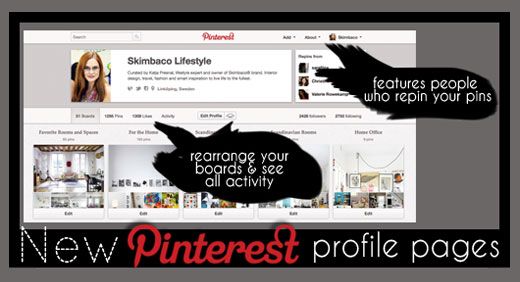
The new profile page let’s you to organize your Pinterest profile page and arrange the boards in the order you want. The bio section at the profile page changed and if your bio was very long, it is cut off and you might want to rewrite a shorter bio to fit the space.


The new changes also include being able to see all activity in a new activity tab and three users who have repinned your pictures. The feature which shows which three users have repinned your photos seem to be random – I don’t think it’s your most active repinners, nor the latest three.
I was unaware of the thought behind this feature – but in fact Cara @ CaraRolinson.com pointed out that it’s the top 3 Pinterest user YOU repin from, so it’s in a way your referral of three users.
how to save the boards on the new pinterest profile page, pinterest new profile page

The follower and follower pages have a new look, and you can see how many pins and boards the users have, but you can’t see for example their follower and following numbers.

The most dramatic change is the ability to arrange your boards and the visual look of the Pinterest profile page.

How to Rearrange Your Boards on Your New Profile Page

Arranging your boards to a new order on your Pinterest profile page is easy, but if you have a lot of boards, read these tips before – it took me sometime to get it right..
how to rearrange the boards on the new pinterest profile page, pinterest new profile page

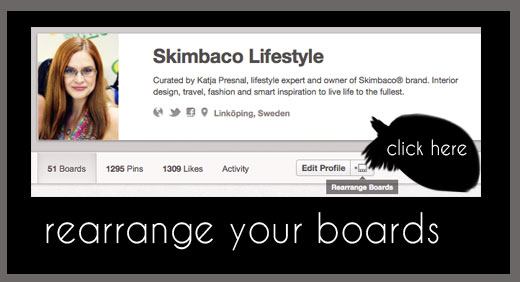
How to rearrange your Pinterest Profile Page boards:

1. Click the “rearrange boards” button next to “edit profile” and the button will turn into a red ✓ mark.
2. Drag your boards to the desired spot.
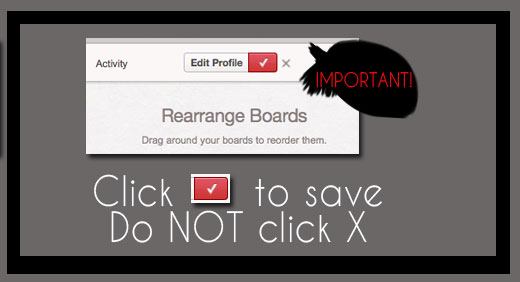
3. Important: click ✓ mark to save, do NOT click the X to save or all of your changes will disappear.
how to save the boards on the new pinterest profile page, pinterest new profile page

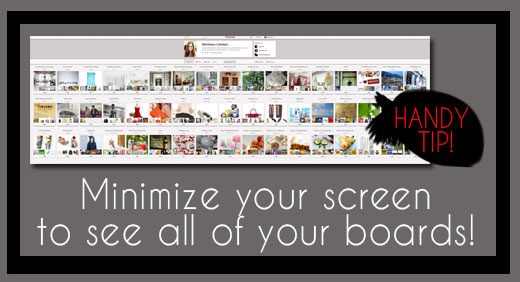
4. TIPS: if you have a lot of boards, minimize your screen to see them all at the same time, this makes it significantly easier to drag the boards to desired order. Well, unless you have hard time seeing and recognizing the boards from each others. (you can minimize your screen by clicking command + minus sign, and you can make it big again with command + plus sign).
tips how to rearrange the boards on the new pinterest profile page, pinterest new profile page

Want more?

Subscribe to our feed and follow Skimbaco’s Pinterest boards.

About Katja Presnal

Katja Presnal is an international lifestyle expert with a mission to inspire people to live life to the fullest. She has been featured in NY Times, Glamour, Redbook and Woman's Day magazines among many other national and international publications and written for MTV3 and Lifetime TV networks. Read Katja's full bio and connect with Katja on Twitter as @skimbaco or @katjapresnal. Katja is currently living her happily-ever-after in Sweden with her husband, and three children (whom were all born in different countries within three years). When not working she is cooking big family dinners, planning her next trip or skiing.

Comments

  1. Stacy Alexander :

    Thanks for the tip. I have rearranged my boards before and found it hard to navigate. I’m glad you mentioned minimizing the page. I will have to try it that way. I know how to minimize my page by double clicking on the top bar and using the arrows, but I have no idea what the command button is… Can anyone enlighten me??

    Thanks,
    Stacy
    contactanastasia@yahoo.com
    (please write command button in subject)

    • Hi Stacy! I minimize the screen by using the command button at the same time as – button. And then you can get it back large again with Command and + button.
      so..
      minimize: “Command” and “-”
      make larger: “Command” and “+”

  2. Thanks Katja – I’ve been wondering how to change the order of boards – you have saved me a lot of time with this explanation and illustration.

  3. Marsha Lingle :

    I wish we could make a cover page for each one of our pins on the board, so that the
    front or top one would stay the same. Also, I wish that the photos would stay in order
    that we put them on, instead of them moving all around out of order…
    I’m sure that is not possible now, at least I haven’t read anything about it.
    Maybe in the future ?

  4. Gracias!!!!!! me estaba volviendo loca intentando encontrar reorganizar mis carpetas. No me gusta mucho el nuevo look
    Thank you!! I was going crazy trying to find organize my boards. I don’t like the new look

  5. Thanks for sharing Katja. My account in Pinterest is waiting for me to find the time to work on it… I’ll definitely follow your tips.

  6. Thanks Katja for the minimizing tip ~ more than once I’ve lost my changes when rearranging and had to start all over!

  7. Darlene Arnold :

    I shared your tutorial on my facebook page. Hope that’s o.k. Thought my friends could benefit from your knowledge.

  8. Thanks so much! I googled “Pinterest rearranged boards” after hopping on this morning and seeing the new set-up. Found your post…so helpful…appreciate it!

  9. Thank you Katja! I am sharing this page everywhere! I had no idea about the minimizing screen tip!

  10. This is a great tutorial, but the ability to rearrange the layout is not a new feature, only the button is. Maybe that’s not even what you’re saying here, but it read to me as if you are saying “hey now we can rearrange our boards”. Just thought I’d bring that up. P.S. I love the style of your site! Very classy :)

  11. Thank you for sharing this, I had no idea we could do this. Can’t wait to work on it later. Hugs!

  12. Thanks so, so much for this post, Katja! I wasn’t even aware there had been any changes, so you “broke the news” to me. :)

  13. Thank you Cara for pointing that out – I updated the post as well :)

  14. Very helpful. Ironically… I found this on pinterest.

  15. Oh geez, I only just got the hang of Pinterest the way it was.
    Thanks for the tips, Katja.

  16. I just figured out that the Repins From section is actually showing who YOU repin from the most. I manage a few accounts for clients and just did a little repinning from one to the other and it directly correlates with those users who I repinned from.

    Good tips!

  17. Awesome info, thanks! And I wish I’d read it thru BEFORE I rearranged my boards TEN TIMES and couldn’t figure out why they weren’t saving. SHEESH!

  18. LOVE THIS!!!!!!! Thank you mama;)

  19. Thanks a bunch, it was a breeze using your article :)

  20. Great tips! Thanks so much for sharing!
    -Samantha
    kreativekaring.com

Trackbacks

  1. [...] Pinterest just rolled out the new profile pages last night, and before you start setting your profile page, please read these tips. The new profile page let’s you to organize your Pinterest profile page and arrange the boards in the order you want. The bio section at the profile page changed and if your bio was very long, it is cut off and you might want to rewrite a shorter bio to fit the space. Tips How to Set Up The New Pinterest Profile Page : Skimbaco Lifestyle by Katja Presnal [...]

Post a Comment

*